
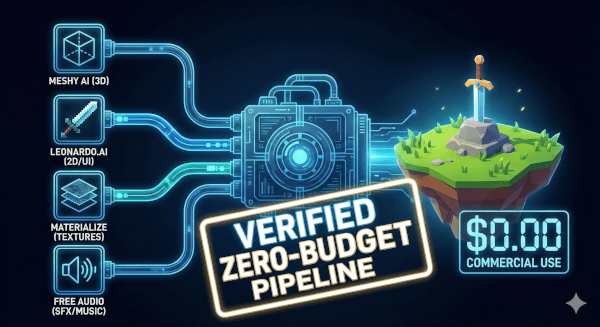
Introduction: The “Asset Flip” Nightmare
If you are a solo developer, you know the feeling. You have a game mechanic that feels amazing. The jump arc is perfect, the shooting is snappy, and the code is clean. But when you hit “Play,” you aren’t greeted by a vibrant world. You are greeted by a grey capsule sliding across a white plane.
For years, this was the “Indie Curse.” If you couldn’t draw, you had two bad options:
- The “Programmer Art” Route: Keep the ugly capsules and hope players have good imaginations (Spoiler: they don’t).
- The “Asset Flip” Route: Buy a $50 Knight model from the Asset Store that looks completely different from your $30 Goblin model, resulting in a game that looks like a mismatched Frankenstein monster.
I was tired of this. I was tired of reading “Top 10 Free AI Tools” lists where half the tools weren’t actually free, or they locked your creations behind a paywall after three clicks.
So, this week, I went into the trenches. I tested the biggest names in generative AI—Sloyd, Luma, Midjourney, and more—specifically looking for true free tiers that allow for commercial use without watermarks.
Most failed. But after 48 hours of trial and error, I found a workflow that actually works. This isn’t just a list of links; this is a verified technical pipeline. If you are a broke indie dev like me, this is exactly how you build a professional-looking game for $0.
1. The 3D Prop Solution: Meshy AI (The Deep Dive)
I started with Meshy because it is the current industry darling for “Text-to-3D.” But my first experience was frustrating. I generated a cool sword, went to download it, and was immediately blocked by a “Upgrade to Pro” popup.
I almost gave up. But then I dug into their documentation and found a loophole that makes it viable for free users.
The “Version Trap” (And How to Fix It)
The default setting on Meshy is their newest model, Meshy-6. It produces incredible results, but it costs 20 credits per generation and—crucially—cannot be downloaded on the free plan. It is strictly for viewing.
However, the legacy model, Meshy-4, is still available, costs only 10 credits, and allows downloads.
- Verified Free Stats:
- Monthly Credits: 100 Credits (Resets every month).
- Cost per Asset: 10 Credits (using Meshy-4).
- Total Monthly Yield: 10 high-quality 3D props.
- License: CC-BY 4.0 (Commercial use allowed with attribution).
Step-by-Step Workflow
- The Setup: Go to the “Text to 3D” tab. Immediately look for the “Version” dropdown and switch it to Meshy-4. If you forget this, you will burn credits on a model you can’t keep.
- The Prompt Strategy: 3D AI needs structure. Don’t just type “Sword.” Use this formula:
[Object] + [Material] + [Style] + [Poly Count].- Bad Prompt: “A cool sword.”
- Good Prompt: “Fantasy broadsword, rusted iron blade with leather wrapped hilt, stylized hand-painted texture, low poly game asset.”
- The Refinement Phase: When you hit generate, Meshy gives you a “Preview.” It will look blobby and melted. Do not download this. You must click the “Refine” button. This takes about 2 minutes, but it tightens the geometry and sharpens the textures.
- Exporting for Unity: Download the file as an .FBX.
Related Topic
Why I’m Finally Making My Own Game
Troubleshooting: “Why is my model pink in Unity?”
A common issue with AI assets is that they lose their texture link when imported.
- The Fix:
- Click the model in your Project window.
- Go to the Inspector > Materials tab.
- Click “Extract Textures” and choose a folder.
- Click “Extract Materials” and choose a folder.
- Unity will now correctly link the image files to the 3D mesh.
2. The 2D / UI Solution: Leonardo.ai (Better Than Midjourney)
Midjourney is the king of quality, but it has no free tier. DALL-E 3 is great, but it’s hard to control. For game assets—specifically UI buttons, icons, and item sprites—Leonardo.ai is the undisputed champion for free users.
Why Leonardo Wins
- Volume: They reset your account to 150 tokens every single day. A standard image costs roughly 2 tokens. This means you can generate ~75 attempts daily. Midjourney doesn’t even come close.
- Commercial Rights: Even on the free tier, you own the assets you create (though they are public on the Leonardo feed).
The “Game UI” Workflow
Generating UI is harder than generating characters because buttons need to be clean and flat.
The Prompt Formula for UI: [Item Name], [Style], [View], [Background], [Render Style]
- Example Prompt: “RPG inventory slot frame, stone texture with gold border, straight front view, 2d vector art, isolated on white background”
The “Background Removal” Trick
Leonardo has a built-in “Remove Background” button. Do not use it. It costs highly valuable tokens. Instead, use this free workflow:
- Generate your button on a white background.
- Download the JPG.
- Open GIMP (Free open-source image editor).
- Go to
Colors>Color to Alpha. - Select “White.”
- Boom. Perfect transparency for $0 cost and 0 tokens.
3. The “Secret Sauce”: Materialize (Texture Upgrading)
This is the step 90% of beginners skip, and it’s why their games look “cheap.”
If you take a flat image of a brick wall from Leonardo and plaster it onto a cube in Unity, it looks like wrapping paper. Real surfaces interact with light. Bricks cast tiny shadows; cracks don’t reflect the sun.
To achieve this, you need Normal Maps (bumpiness) and Smoothness Maps (shininess). Usually, you need expensive software like Substance Designer to make these.
Enter Materialize. It is an open-source, free tool you download from GitHub (not a website).
How to Fake AAA Textures
- Load your Image: Open Materialize and import your flat texture (e.g., the brick wall from Leonardo).
- Generate Height Map: Click “Create” under the Height Map section. Use the sliders to define “Frequency.” (Tip: High frequency = small details like sand; Low frequency = big shapes like rocks).
- Generate Normal Map: This is the magic button. It turns that height data into purple/blue lighting data Unity understands.
- Generate Smoothness: Adjust this so the “bricks” are black (matte) and the “wet parts” are white (shiny).
- Export: Save them as .PNGs.
In Unity: Create a standard material. Drag your original image into “Albedo.” Drag your blue Normal Map into “Normal.” Suddenly, your flat wall pops with 3D detail.
Related Topic
Unlock Your Creativity: A Simple Guide to Blender 3D
4. The Missing Piece: Audio for $0 (Warning: Avoid AI Here)
I know this post is about AI, but I have to be honest: Free AI Audio is a trap.
I tested ElevenLabs and Suno. Both are incredible, but their free tiers are strictly Non-Commercial. If you use them in a game you plan to sell, you are violating their Terms of Service.
For a true Zero-Budget Commercial pipeline, we have to go “Old School” for audio.
For Sound Effects (SFX): Use “Chiptone”
Chiptone is a free, web-based tool that procedurally generates retro sound effects.
- Need a coin pickup? Click the “Coin” button.
- Need an explosion? Click “Boom.”
- It generates a unique WAV file every time, royalty-free. It’s perfect for indie games.
For Music: Freesound.org (The Safe Bet)
Don’t risk AI copyright strikes on your music. Go to Freesound.org and filter by “Creative Commons 0” (CC0). This license means you can do whatever you want with the track—remix it, sell it, loop it—without even needing to give credit (though it’s nice to do so).
5. The Safety Check: Managing Licenses
Since we are mixing different tools, you need to keep your “Legal House” clean.
- Meshy Assets: These are CC-BY 4.0. You must credit them.
- Leonardo Assets: These are generally yours, but check the latest TOS.
- Chiptone/Materialize: 100% Free.
The “Credits Screen” Template: To be safe, create a “Credits” button in your game’s main menu and paste this text:
Game Assets Usage Credits:
- 3D Prop Generation provided by Meshy AI.
- 2D UI Elements generated via Leonardo.ai.
- Sound Effects generated via Chiptone.
- Developed by [Your Name].
Doing this simple step protects you from legal headaches down the road.
Conclusion: No More Excuses
I wrote this guide to prove a point: Budget is no longer a barrier to entry.
Ten years ago, you needed a team of five to build a 3D dungeon crawler. Today, you have a 3D modeler (Meshy), a Texture Artist (Materialize), and a UI Designer (Leonardo) sitting in your browser tab, waiting for your commands.
The pipeline I just laid out costs $0.00. It requires no credit card. It creates commercial-ready assets.
The only thing missing now is your idea. Stop refreshing the Asset Store. Open these tabs, generate your first sword, and go make something awesome.
(Author’s Note: AI tools change their pricing models rapidly. I verified these free tiers as of early 2026. If you find a tool has changed its rules, drop a comment below and I will find a new alternative!)
Leave a Reply